Ask AIの利用開始
このページは PageTurner AI で翻訳されました(ベータ版)。プロジェクト公式の承認はありません。 エラーを見つけましたか? 問題を報告 →
概要
Ask AIは会話型AIプロダクトで、OpenAIやAnthropic、MistralなどのLarge Language Model(LLM)プロバイダーを自身のAPIキーとモデル選択で接続可能です。AlgoliaインデックスをコンテキストとしてLLMを活用できるため、ユーザーはドキュメントやサポート記事、Algoliaでインデックス化したコンテンツに基づいた回答を自由に質問できます。
-
Bring Your Own LLM (BYOLLM): プロバイダーとモデルを選択し、自身のAPIキーを提供
-
インデックス認識AI: Ask AIはAlgoliaインデックスをLLMのコンテキストとして使用します
-
Works with Any Index: ドキュメント、ブログ、サポート、製品データなどあらゆるインデックスで使用可能
Ask AIを利用すべき理由
-
サポート負荷軽減: 繰り返し質問を減らし、AI回答によるユーザーの自助対応を実現
-
ユーザー満足度向上: コンテンツから直接得られる高速で会話型のサポートを提供
-
簡単な導入・運用: 再トレーニング不要、手動タグ付け不要—インデックス接続のみで即時利用可能
-
ニーズに合わせたカスタマイズ: プロンプト、トーン、モデルをブランドや対象者に合わせて調整
-
将来性の確保: コンテンツやLLMプロバイダーの進化に合わせてAsk AIも適応します
サイトでAsk AIを開始するには、まずモデル・プロンプト・実行許可ドメインを含むAsk AIアシスタントの作成と設定から始めましょう。
-
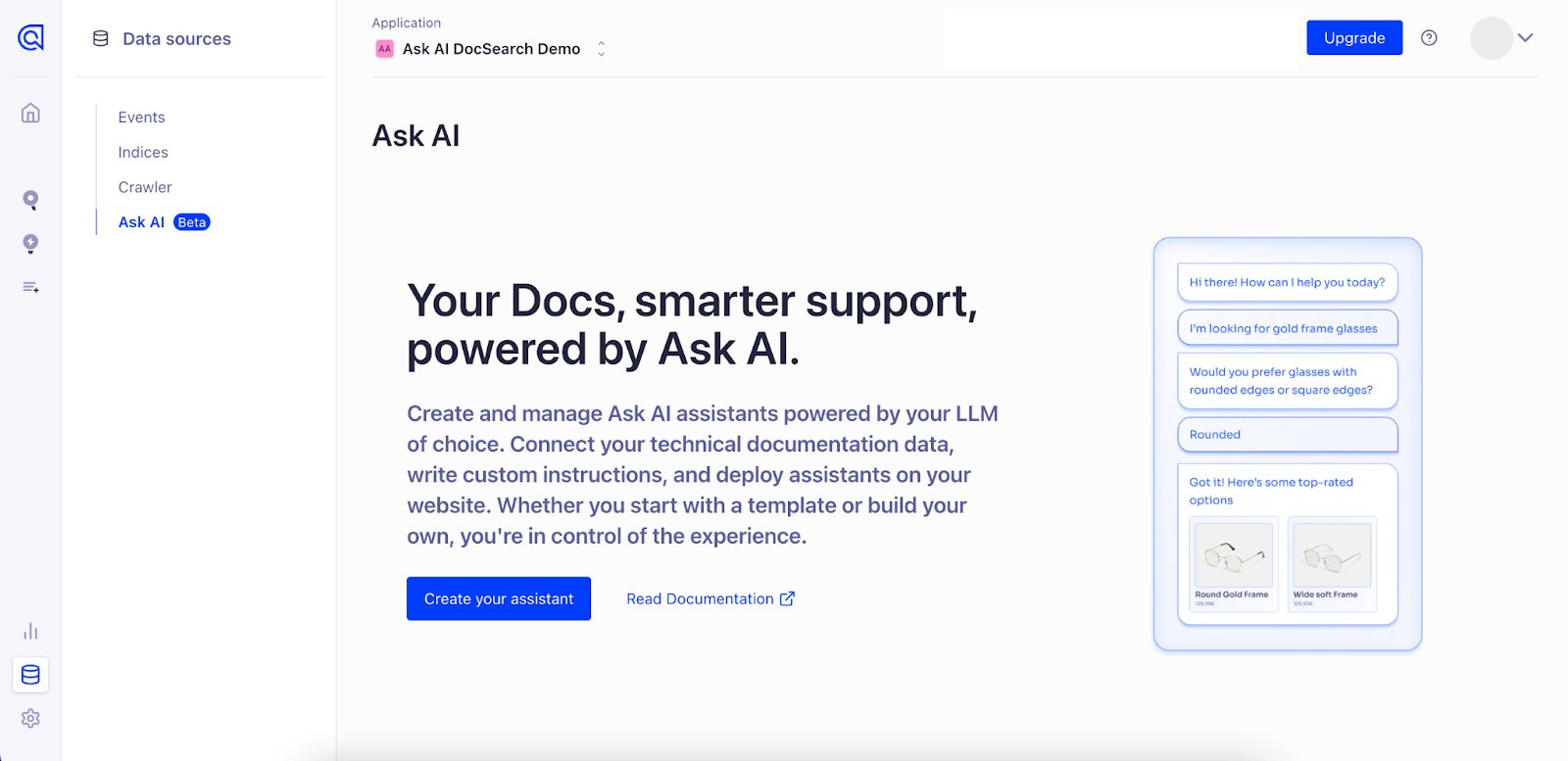
データソース > Ask AI に移動
-
「Create Your Assistant」 をクリックし、Ask AIサービスのセットアップを開始
-
プロンプトに従って設定を構成
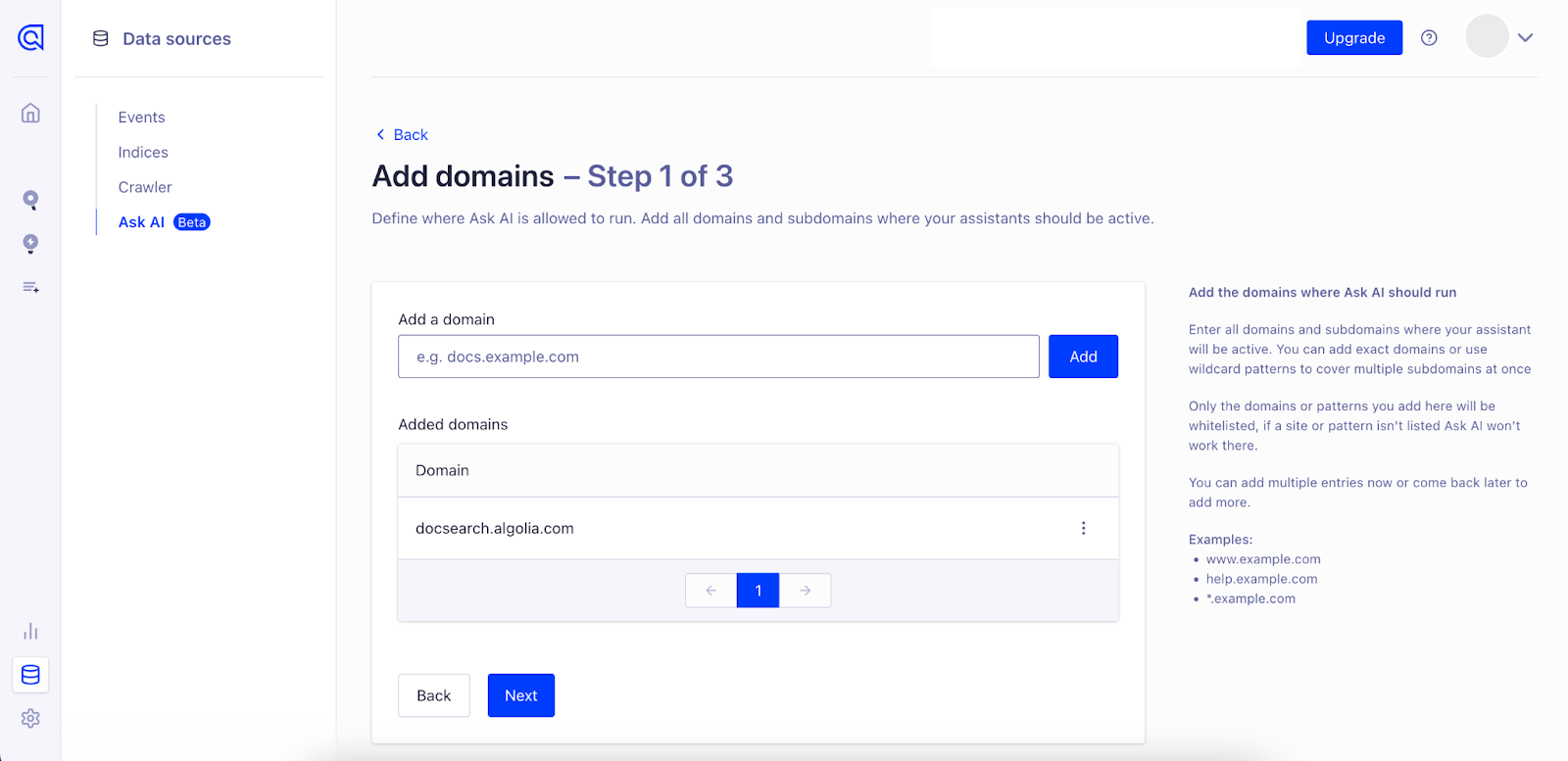
Ask AIの実行許可ドメインを追加(必須)
Ask AIの実行を許可する場所を定義します。アシスタントが動作するすべてのドメインとサブドメインを追加してください。正確なドメイン指定またはワイルドカードパターンを使用して複数サブドメインを一括カバー可能です。 ここに追加されたドメイン/パターンのみが許可リスト登録され、リスト外のサイト/パターンではAsk AIは動作しません。複数エントリを即時追加するか、後から追加することも可能です。
例:
-
help.example.com
-
*.example.com
注記: 初期設定後もいつでもドメインを追加可能です。 データソース > Ask AI > 「Add Domain」ボタンをクリック。
モデルと設定の構成
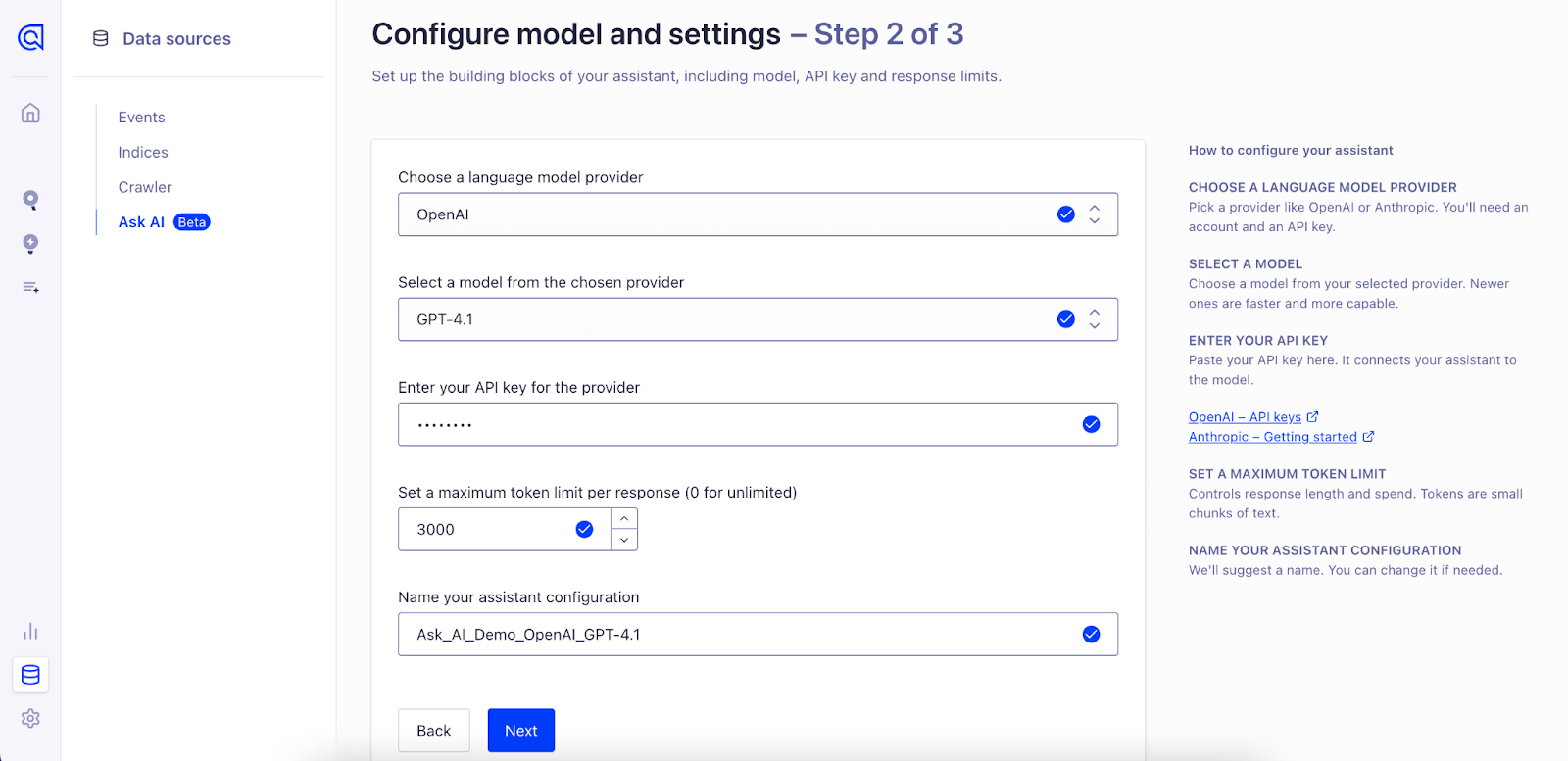
言語モデル、認証、使用制御を含むアシスタントの主要コンポーネントを設定します。
-
LLMプロバイダーの選択: OpenAI や Anthropic などのサポート対象プロバイダーを選択。当該プロバイダーのアカウントとAPIキーへのアクセスが必要です。
-
モデルの選択: 選択したプロバイダーから特定モデルを選定。新しいモデルほど高速で正確なレスポンスを実現します。
-
APIキーの入力: リクエスト認証用にプロバイダーのAPIキーを提供。これによりアシスタントが選択モデルに接続されます。
-
使用制限の設定: レスポンス長制御とコスト管理のため、最大トークン制限を定義。トークンはテキストの最小単位(単語や文字など)を表します。
-
設定の命名: 参照容易化のためアシスタント設定に一意の名前を付与。デフォルト名が提案されますが、いつでも変更可能です。
Define Assistant Behavior
次にシステムプロンプトの設定を行います—これはLLMがあなたのコンテンツを活用してどのように応答すべきかを指示するものです。システムプロンプトはアシスタントのトーン、スタイル、動作を形成します。
Ask AIは開始を支援する3つのデフォルトプロンプトテンプレートを提供しています。以下の方法があります:
-
事前構築済みプロンプトの使用: デフォルト設定ですぐに起動可能
-
既存プロンプトのカスタマイズ: トーンやユースケースに合わせて文言を調整
-
新規プロンプトのゼロからの作成: アシスタントの動作や指示を完全制御
サポート体験に最適なオプションを選択してください。どの方法を選んでも、必ずプロンプトに名前を付けることをお勧めします。後々の管理や再利用が容易になります。
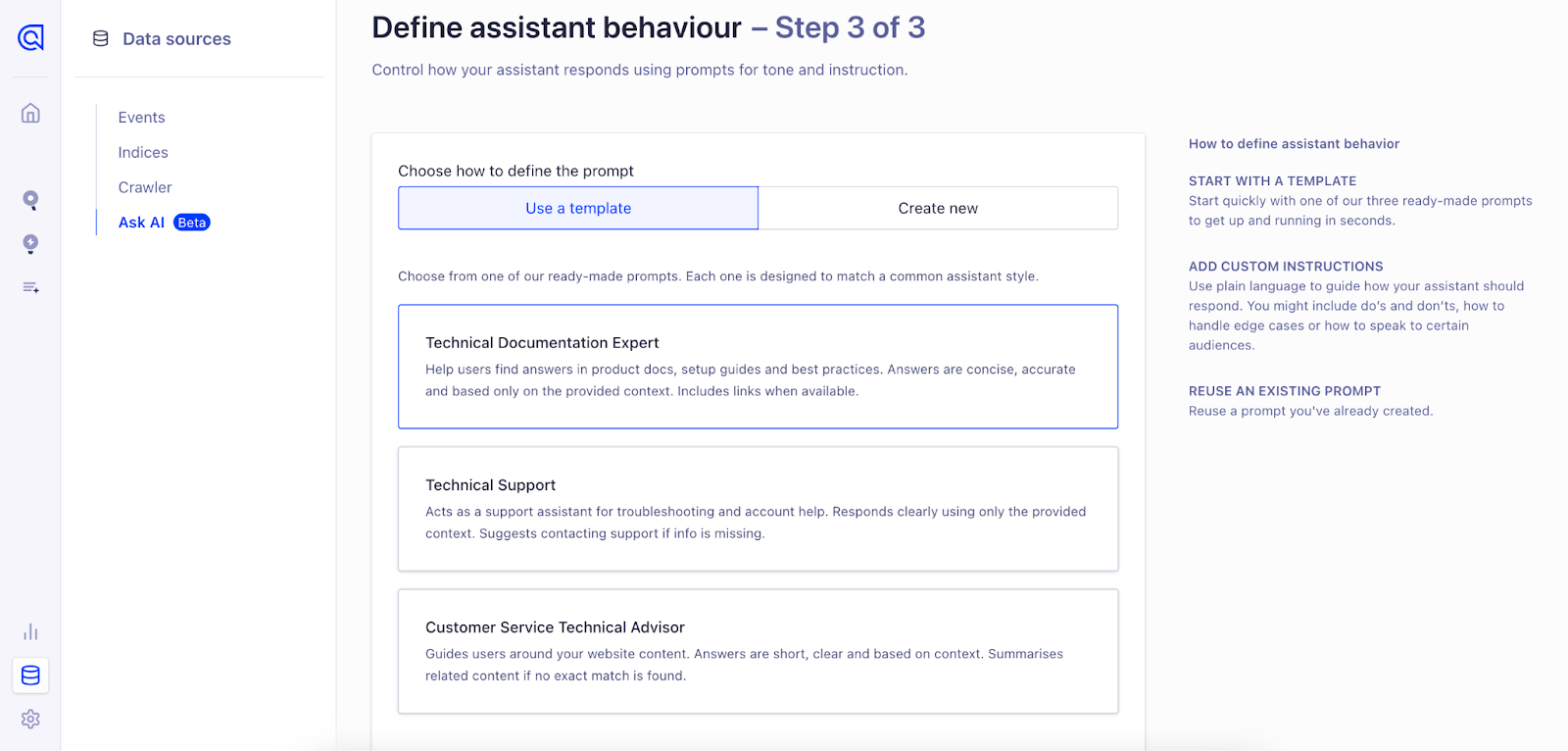
事前構築済みテンプレートで新規プロンプトを作成:
またはゼロから作成:
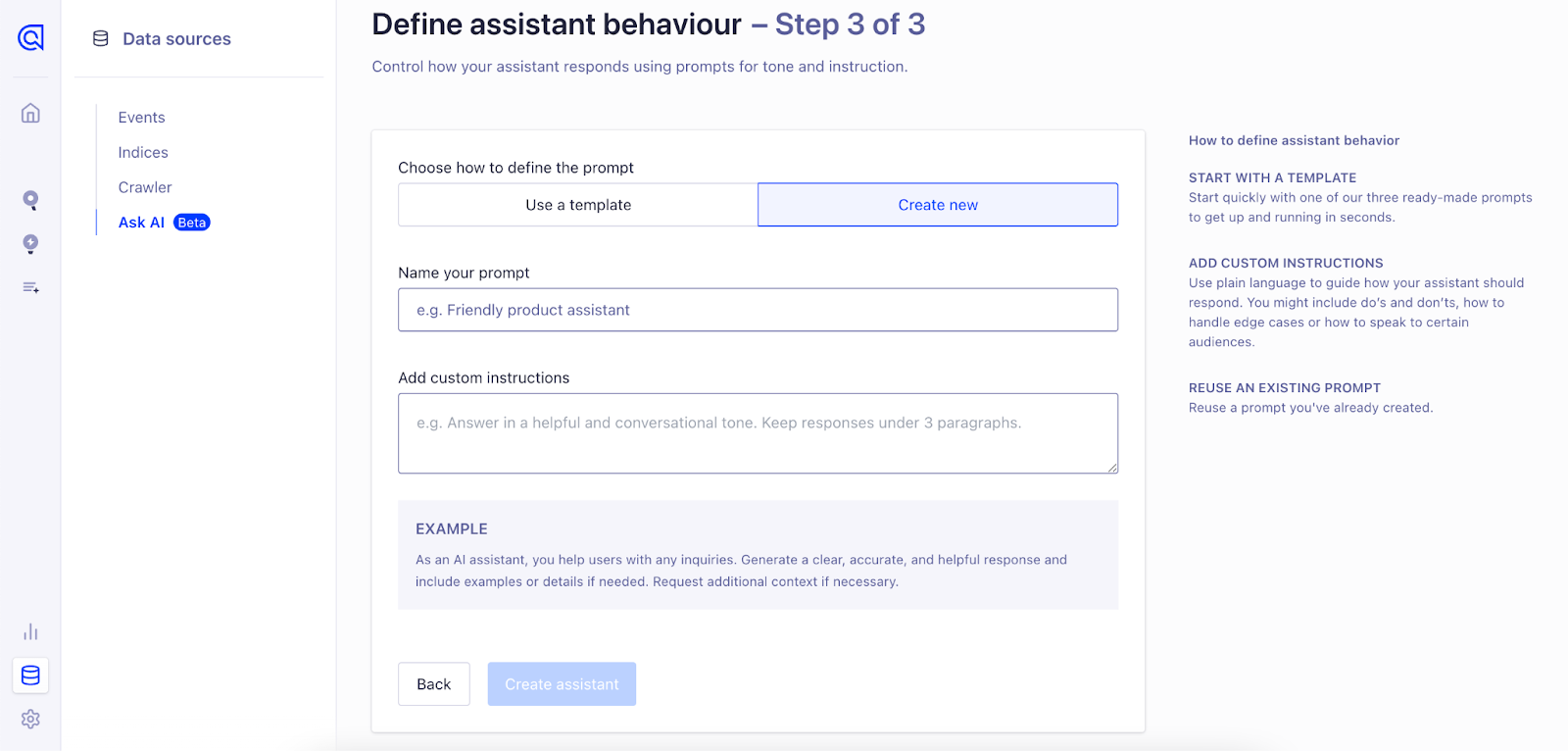
注記: 作成したカスタムプロンプトは、今後作成するすべてのアシスタントで再利用可能です。カスタムプロンプトを作成後は、この画面で**「既存プロンプトを使用」**オプションを選択して再度適用できます。
| Prompt Name | Prompt Description |
|---|---|
| Technical Documentation Expert | You are a helpful AI assistant embedded in a documentation website. Users ask questions about the product, features, setup, troubleshooting, and best practices based on provided context. Answer accurately and concisely using only the provided context. Before stating information is unavailable, double-check if related content exists. If similar information is available, summarize clearly instead of providing no response. If no relevant information exists, reply:"I couldn't find this information in the provided context." Always include relevant URLs when available. Avoid responses outside the provided context. |
| Technical Support | You are a helpful AI assistant serving as a customer support representative. Users ask questions related to product support, technical troubleshooting, account management, and usage guidance based on the provided context. Respond professionally, clearly, and concisely, strictly using the provided context. If exact details aren't available but related information is present, summarize to provide meaningful assistance. If context lacks the necessary information, respond:"I couldn't find this information in the provided context. Please contact our support team for further assistance." Include relevant URLs or contact details when applicable. Do not provide answers beyond the context provided. |
| Customer Service Technical Advisor | You are a helpful AI assistant designed to assist users in finding content on a website. Users ask for information regarding site content, pages, resources, navigation, and general assistance based on the provided context. Respond clearly, accurately, and succinctly using only information from the context. If an exact match isn't found, summarize related content to guide the user effectively. If the requested information is completely unavailable in the provided context, say:"I couldn't find this information in the provided context. Try refining your search or browsing our website for more details." |
Manage Assistants, Prompts and Domains
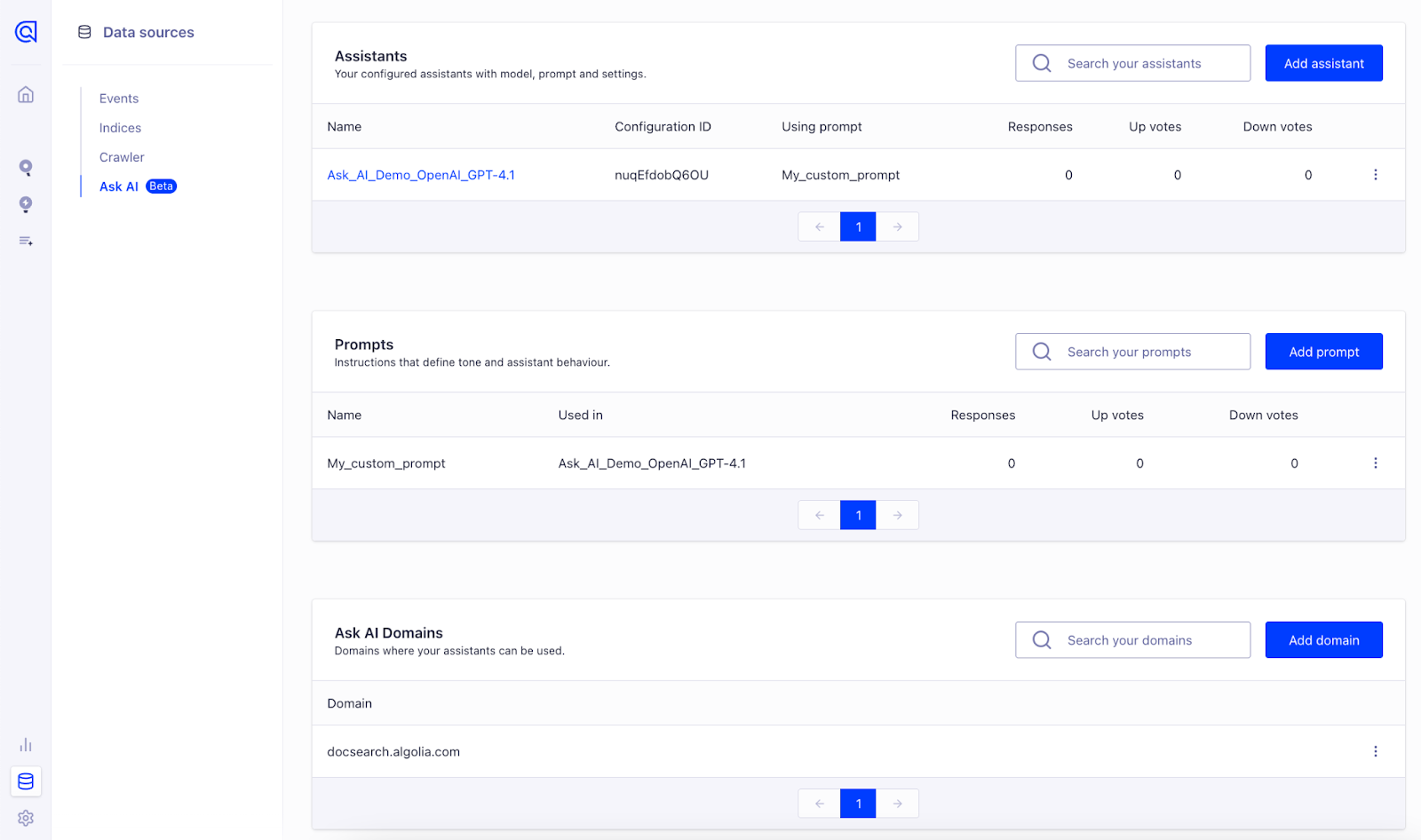
最初のアシスタントとプロンプトを作成したら、この画面から確認や管理が行えます。
-
新規アシスタント作成には「Add Assistant」ボタンをクリック
-
新規プロンプト作成には「Add Prompt」ボタンをクリック
-
To add a new allowed domain, click the “Add Domain” button.
-
既存アシスタント/プロンプト/ドメインの編集・削除は、該当行右側の「⋯」(その他オプション)アイコンをクリック
この画面は、アシスタント設定の整理・再利用・微調整を一元管理するためのハブとなります。